6 ChatGPT Symbols and Their Uses: A Beginner’s Guide
Six everyday symbols that make your prompts clearer and easier for ChatGPT to follow, with simple examples you can copy and try right now.

ChatGPT gives better answers when it clearly understands what you want. A long, messy paragraph makes it guess. A neat, well-organised prompt tells it exactly what to do.
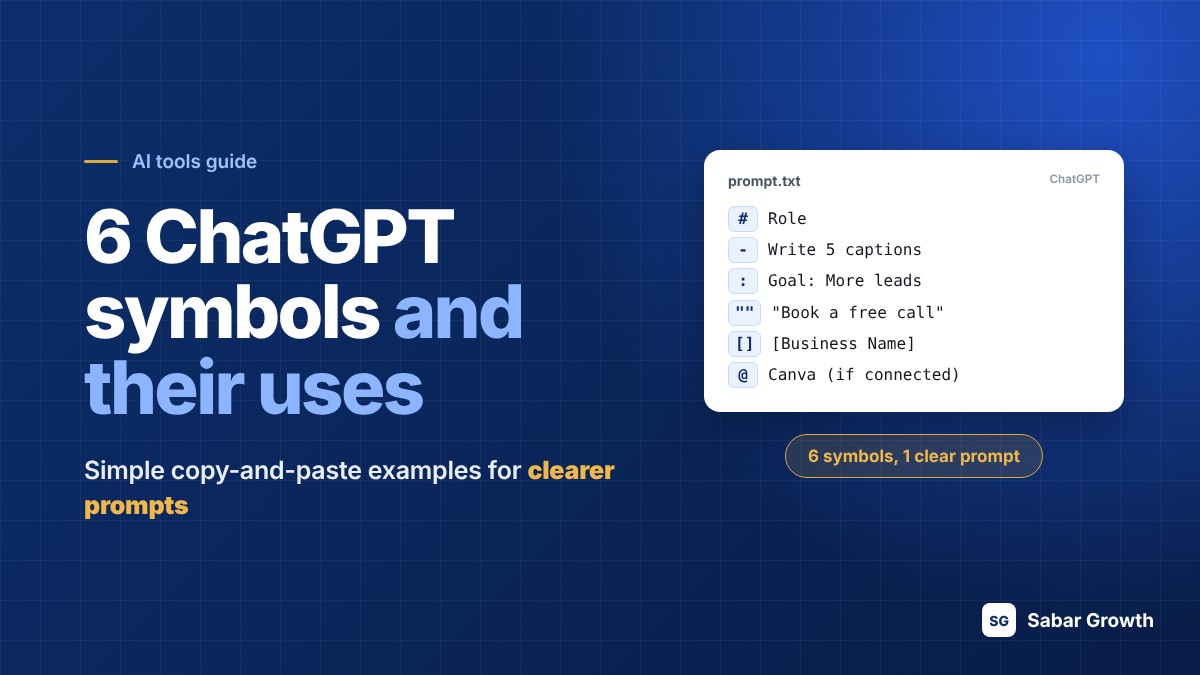
You don’t need to learn coding for this. A few everyday symbols are enough. In this guide, you’ll learn six ChatGPT symbols and their uses: #, -, :, "", [] and @. For each one, you’ll see what it does, when to use it, and an example you can copy.
Good to know
Five of these symbols are not special ChatGPT commands. They are ordinary writing habits that make your instructions easier to read. Only @ can trigger a feature, and only in ChatGPT versions that support it.
Quick overview of the 6 ChatGPT symbols
| Symbol | Main purpose | Best use |
|---|---|---|
# |
Organize | Structure a detailed prompt |
- |
List | Break tasks into individual requirements |
: |
Define | Specify goals, roles, budgets, and other details |
"" |
Identify exact text | Headlines, keywords, and source messages |
[] |
Mark placeholders | Reusable prompts and message templates |
@ |
Reference supported apps or tools | App-integrated workflows |
1. # — Organize your prompt into sections
The hash symbol works like a heading. It splits your prompt into clear sections, such as who ChatGPT should be, what you want to achieve and what it should do.
When to use it: for longer prompts with several parts. For a one-line question, you don’t need it.
Example
# Role
Act as a digital marketing expert.

# Goal
Increase Instagram followers.

# Tasks
- Analyse the account.
- Suggest content ideas.
- Create a 30-day content calendar.
With sections, ChatGPT can see at a glance what the role is, what the goal is and which tasks belong together. It also makes the prompt easier for you to edit later.
Tip
# is a Markdown heading convention, not a special ChatGPT command. ChatGPT simply recognises it as a common way to mark headings. Plain labels like “Role” and “Goal” on their own lines also work.
2. - — List tasks and requirements
A hyphen at the start of a line creates a bullet point. Each bullet holds one task or requirement, so nothing gets buried in a long sentence.
When to use it: whenever you want ChatGPT to do several things, or follow several rules.
Example
Analyse my Google Ads campaigns and:
- Identify wasted spending.
- Recommend keyword improvements.
- Review conversion tracking.
- Suggest landing page improvements.
Lists help ChatGPT cover every point, and they make it easy for you to check whether anything was missed in the answer.
Tip
Keep one clear task per bullet. “Improve everything” is vague. “Suggest three better headlines for the landing page” is specific.
3. : — Define goals and instructions
A colon separates a label from its details. It’s like filling in a short form: the label on the left, your answer on the right.
When to use it: to give project details and limits, such as your role, goal, location, budget or deadline.
Example
Role: SEO specialist
Goal: Increase organic traffic
Location: Oman and UAE
Budget: 200 OMR per month
Deliverable: A 90-day SEO strategy
This format packs a lot of useful information into a few lines. ChatGPT knows your constraints from the start, so its suggestions fit your real situation.
Tip
Always include a “Deliverable” line. Telling ChatGPT what the final output should look like (a table, a plan, a checklist) is one of the easiest ways to get a usable answer.
4. "" — Identify exact text
Quotation marks separate a specific phrase from the rest of your instructions. They show ChatGPT: “this exact piece of text matters”.
When to use it: for headlines, keywords, slogans or a customer message you want ChatGPT to respond to.
Examples
Headline: Create a post using the exact headline "Grow Your Business with Performance Marketing".

SEO: Target the keyword "performance marketing specialist in Oman".

Customer service: Write a professional reply to "I waited 45 minutes for my appointment."
Without the quotes, ChatGPT might treat the headline or keyword as part of your instruction and reword it.
Tip
Quotation marks identify the text, but they don’t lock it. If the wording must not change, say so clearly, for example: “Use this headline exactly as written. Do not change any words.”
5. [] — Mark information that needs to be filled in
Square brackets mark placeholders: gaps you fill in with your own details. They turn one good prompt or message into a template you can reuse again and again.
When to use it: for message templates, reusable prompts and anything you send often with small changes.
Message template
Hello [Customer Name],

Thank you for contacting [Business Name].

Your appointment is scheduled for [Date] at [Time].
Before you use it, replace each bracket with real details, for example [Customer Name] becomes Ahmed. Here’s the same idea as a reusable ChatGPT prompt:
Reusable prompt
Write 3 Instagram captions for [Business Name], a [type of business] in [City].
The offer is [describe the offer].
Keep each caption under [number] words and end with a call to action.
The free keyword research prompt in my guide to Google Ads keyword research with Claude AI uses square brackets in exactly this way.
Tip
Square brackets don’t create fill-in boxes or forms. They are plain text. If you forget to replace one, ChatGPT will either guess or leave the bracket in its answer.
6. @ — Reference supported apps or tools
The @ symbol is different from the other five. In some ChatGPT versions, typing @ opens a menu where you can pick a connected app or a custom GPT to help with your request.
When to use it: when you’ve already connected an app, such as Canva, and want ChatGPT to use it in the chat.
Example: if Canva is connected and available in your mention menu, type @, select Canva, then ask: Design an Instagram post announcing our weekend offer. You can also start your message with the app’s name, such as “Canva, create…”, and ChatGPT may bring the app in.
Important
Typing @Canva or @Google Drive in an ordinary message does not connect an app or give ChatGPT access to your files. Apps must be connected first, and what you see depends on your ChatGPT version, plan, region and permissions. Menus also change over time, so check what your own account shows.
How to use all 6 symbols in one ChatGPT prompt
Here’s a practical prompt that uses all six symbols naturally. Copy it, replace the brackets, and try it.
All 6 symbols together
# Role
Act as a social media marketing expert.

# Business details
Business name: [Business Name]
Location: [City, Country]
Audience: [Who you want to reach]
Offer: [Your current offer]

# Tasks
- Write 5 Instagram captions for this offer.
- Use the exact headline "Book Your Free Consultation Today" in every caption. Do not change its wording.
- Suggest 10 relevant hashtags.

# Output
Format: A table with two columns, Caption and Hashtags

# Optional (only if Canva is connected)
@Canva Turn caption 1 into an Instagram post design.
Here’s what each symbol does in this prompt:
#splits the prompt into Role, Business details, Tasks and Output.-lists each task separately.:defines each business detail and the output format.""marks the exact headline, with a clear “do not change” instruction.[]shows what you need to fill in.@is optional. Use it only if your ChatGPT supports app mentions and Canva is connected; select Canva from the menu rather than just typing the name. Otherwise, delete the last section.
Common mistakes to avoid
- Thinking every symbol is a special command. Most are just formatting. Clear words still matter most.
- Writing vague instructions. Neat formatting can’t fix an unclear request like “make it better”.
- Forgetting to replace placeholders. Check for leftover
[ ]before you press send. - Expecting quotation marks to guarantee exact wording. Say “do not change this” when it matters.
- Assuming
@connects an app. The app must already be connected and supported in your account.
Conclusion
These six ChatGPT symbols and their uses are simple, but together they help you write prompts that are organised, specific and easy to reuse. Headings give structure, bullets list tasks, colons define details, quotes mark exact text, brackets create templates, and @ brings in connected apps where supported.
Remember, the symbols are tools, not magic. A clear request matters more than using every symbol. Start with one example from this guide, try it in ChatGPT, and adjust it for your own work.
Want to go further with AI at work? Read how to use Claude AI for business growth, explore more practical guides on the SabarGrowth blog, and follow @sabar_growth on Instagram for short AI and marketing tips.
Sources
- Basic Syntax: headings and lists, Markdown Guide
- Connect your Canva account to ChatGPT, Canva Help Center
Frequently asked questions
No. #, -, :, quotation marks and square brackets are ordinary text-formatting habits. ChatGPT reads them as normal text, but they make your instructions easier to follow. Only @ can trigger a feature, and only in interfaces that support app or GPT mentions.
No. A clear, specific request in plain sentences works well. Symbols simply help when your prompt is long or has many details, because they keep everything organised.
Not always. App and GPT mentions depend on your ChatGPT version, plan, region, connected apps and permissions, and the menus change over time. Typing @ followed by an app name in a normal message does not connect that app by itself.
Yes. Headings, bullet points, labels, quotation marks and placeholders are plain text, so they help organise prompts in most AI chat tools. How @ mentions work is different in each tool.
Want to use AI in your marketing?
From prompt templates to automated reporting, I help businesses use AI in ways that save real time and bring in real leads.
Sabar
Founder, Sabar Growth — Performance Marketing & AI Automation
Founder of Sabar Growth, a founder-led performance marketing agency based in Muscat, Oman, working with businesses across Dubai, UAE, Saudi Arabia, Qatar and the GCC. Years of hands-on experience managing Meta Ads and Google Ads campaigns, and building practical AI workflows that save marketing teams time.
45,000+ qualified leads
141× best blended ROAS
One Response