
How to Use Claude AI for Google Ads Keyword Research (Free Copy-and-Paste Prompt)
You’ve exported hundreds of keywords from Keyword Planner. Here’s how to let Claude clean, sort and group them into a focused Exact and Phrase Match list, with a free prompt you can copy.
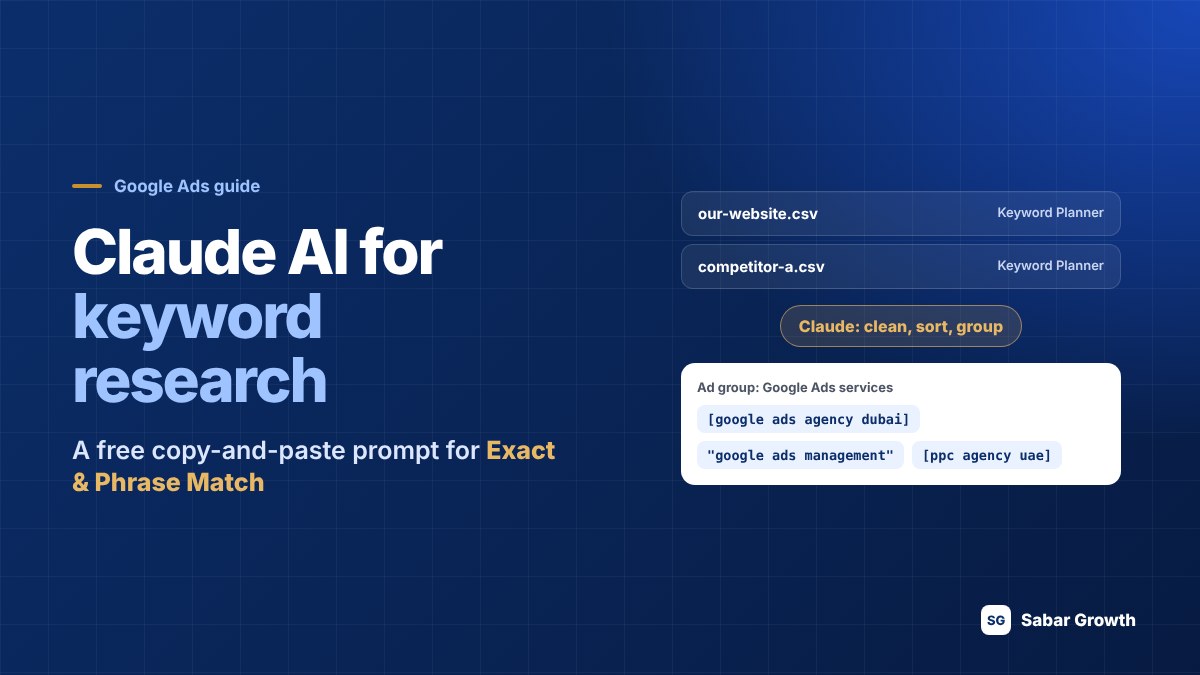

You’ve done the keyword research. You’ve run your website through Google Keyword Planner, then your competitors’ websites, and now you have three or four exported files with hundreds of rows each.
That’s where most people get stuck. Somewhere in those files are the 50–150 keywords that will actually bring you enquiries. The rest are duplicates, wrong locations, job seekers, students, “free” searches and services you don’t even offer.
Going through all of that by hand takes hours. This is exactly the kind of work an AI tool like Claude is good at: reading the files, cleaning them, sorting keywords by intent and organising them into ad groups. You still make the final decisions; Claude does the heavy sorting.
What you’ll get from this guide
- Why relevance matters more than search volume.
- How to export the right data from Keyword Planner.
- What Exact and Phrase Match really do in 2026.
- A free, ready-to-copy prompt for Claude.
- A checklist to verify Claude’s work before anything goes live.
Why relevance matters more than search volume
It’s tempting to sort your export by “Avg. monthly searches” and pick the biggest numbers. That’s usually a mistake for a Search campaign.
A high-volume keyword can be full of people who will never buy: students, job seekers or people looking for free advice. A smaller, specific keyword often has far fewer searches but much stronger buying intent. Imagine you run a digital marketing agency in Dubai:
| Keyword | Search volume | Who is searching | Keep it? |
|---|---|---|---|
| digital marketing | Very high | Students, job seekers, people reading about the topic | No |
| digital marketing course dubai | Medium | People who want to learn, not hire | No |
| google ads agency dubai | Low | A business owner ready to hire | Yes |
| google ads management services uae | Low | A business comparing providers | Yes |
Illustrative example. Volume labels are relative, not real figures.
In a Search campaign, you pay for clicks. So the question isn’t “how many people search this?” but “would the person searching this become my customer?”
Step 1: Export your keyword ideas from Keyword Planner
Open Keyword Planner in Google Ads (Tools, then Keyword Planner) and choose Discover new keywords. Collect ideas from three angles:
- Your own services. Enter the words customers use for what you sell, such as “google ads agency” or “dental implants”.
- Your own website. Use the Start with a website option. Google reads the content on the page you enter and suggests related keywords.
- Competitor websites. The same option works with any website, so you can enter a competitor’s page and see the keywords Google links to it.
Set the right location and language before you export, for example United Arab Emirates and English, or Oman and Arabic. Then use the download button to save each set of ideas. You’ll get a file with columns such as the keyword, average monthly searches, competition and top-of-page bid ranges.
Name the files clearly, such as our-website.csv and competitor-a.csv, because Claude will refer to them by name.
Good to know
If your Google Ads account isn’t actively spending, Keyword Planner may show search volumes as broad ranges instead of exact figures. That’s fine for this process: you’re judging relevance first, and volume is a secondary check.
Step 2: Understand Exact and Phrase Match
This guide builds a keyword list for a campaign using only Exact and Phrase Match. Here is how Google itself defines them:
| Match type | How you write it | Google’s definition |
|---|---|---|
| Exact Match | [google ads agency] | Ads may show on searches that have the same meaning or same intent as the keyword. |
| Phrase Match | “google ads agency” | Ads may show on searches that include the meaning of your keyword. |
| Broad Match | google ads agency | Ads may show on searches that are related to your keyword. |
One thing surprises many advertisers: Exact Match isn’t exact anymore. Google calls these extra matches “close variants”. Both Exact and Phrase Match can show your ad for:
- misspellings, singular and plural forms, abbreviations and accents
- the same words in a different order, when the meaning is the same
- searches with small words like “in”, “for” or “the” added or removed
- synonyms, paraphrases and searches with the same intent
This matters for your keyword list. You don’t need ten versions of the same keyword (“google ads agency”, “google ads agencies”, “agency google ads”). Google already covers those, so the extra versions just make your list harder to manage.
Why leave out Broad Match?
Broad Match isn’t bad. But Google itself says it’s critical to use Smart Bidding with Broad Match, because it reaches a much wider range of searches. For a new account, a small budget or a campaign that needs tight control, many specialists, including me, start with Exact and Phrase only and add Broad Match later in its own campaign. I explain that two-campaign approach in my guide to Google Ads campaign structure.
This is a strategy choice, not a Google rule. If your plan excludes Broad Match, the prompt below makes sure Claude doesn’t add it.
Still getting comfortable with match types and campaign setup? I teach Google Ads hands-on, on a real project, in my 1:1 digital and performance marketing training.
Step 3: Give Claude your files and your business details
Open a new chat in Claude and attach your exported files. Claude can read CSV files directly. To upload Excel (.xlsx) files, you need to enable code execution and file creation in your Claude settings. You can attach up to 20 files in one chat.
Then paste the prompt below and fill in the parts in square brackets. The business details matter most: without them, Claude can only guess what “relevant” means for you. (If you’re new to writing prompts, I explain the simple structure behind this one in how to use Claude AI for business growth.)
Step 4: The free copy-and-paste prompt
Claude prompt: Google Ads keyword list builder
Act as a senior Google Ads Search specialist. Help me build a clean keyword list for a Google Search campaign, using the Keyword Planner files I've attached.

ABOUT THE BUSINESS
- Business name: [name]
- Website: [URL]
- What we sell: [list the exact services or products to advertise]
- What we do NOT sell: [services or products to exclude]
- Locations we serve: [cities / countries]
- Languages: [e.g. English, Arabic]
- Main goal: [e.g. calls, WhatsApp enquiries, form leads, online sales]
- Competitors: [names or websites]
- Competitor brand names as keywords: [include / exclude]

FILES ATTACHED
- [File 1: e.g. our-website.csv, Keyword Planner ideas from our website]
- [File 2: e.g. competitor-a.csv, ideas from a competitor's website]
- [File 3: any other keyword list]

YOUR TASK
1. Read every file. Before anything else, tell me how many rows each file has and which columns it contains.
2. Combine the files, clean the keywords (lowercase, remove extra spaces) and remove duplicates.
3. Remove keywords that aren't relevant to this business: services we don't offer, locations we don't serve, job/career/salary searches, free/DIY/course/"how to" searches, and anything that doesn't fit our main goal.
4. Label each remaining keyword by search intent: Transactional, Commercial, Informational or Navigational. Keep Transactional and Commercial.
5. Score each kept keyword for relevance from 1 to 5, with a short reason. Relevance matters more than search volume.
6. Group the kept keywords into tightly themed ad groups of about 5–20 keywords each. One service or theme per ad group.
7. Give each keyword ONE match type:
   - Exact Match [keyword] for specific, high-intent searches.
   - Phrase Match "keyword" for core terms where longer searches that include them are still relevant.
   Do not use Broad Match. Do not add the same keyword as both Exact and Phrase in one ad group.
8. Google's Exact and Phrase Match already cover close variants (plurals, misspellings, reordered words, same meaning). Remove keywords that are only close variants of another keyword in the same ad group, and keep the clearer version.
9. Suggest negative keywords based on the irrelevant searches you removed.

RULES
- Use only the data in my files. Never invent or estimate search volumes, bids or competition. If a value is missing, write "not in file".
- Every keyword in the final list must come from my files. If you want to suggest a new keyword, list it separately as "New suggestion: check in Keyword Planner".
- If anything about my business is unclear, ask me before deciding.

OUTPUT
A. Summary: rows in each file, duplicates removed, keywords removed (with the main reasons), keywords kept.
B. Final keyword table: Ad group | Keyword | Match type | Intent | Relevance (1–5) | Avg. monthly searches | Top of page bid (low–high) | Reason.
C. Removed keywords table: Keyword | Reason removed.
D. Negative keyword list.
E. A downloadable CSV with the columns Campaign, Ad group, Keyword, Match type, for me to review before importing.
The prompt asks Claude to show its working: how many rows it read, what it removed and why. That’s deliberate. A list you can’t check is a list you shouldn’t trust.
Step 5: Check Claude’s work before you use it
AI is fast, but it can still make mistakes, misread a column or quietly drop a good keyword. Spend 15 minutes on these checks:
Check the numbers add up
Rows read should equal kept keywords + removed keywords + duplicates. If they don’t, ask Claude to explain the difference.
Spot-check against your files
Pick 10 keywords from the final list and search for them in your original export. The keyword and its search volume should match exactly.
Read the removed list
This is where good keywords get lost. If you see one you want, move it back.
Test each ad group
Ask: could one ad and one landing page serve every keyword in this group? If not, split the group.
Confirm the match types
Every keyword should be in [brackets] or “quotes”. No Broad Match, and no keyword added twice in one ad group.
Re-check new suggestions
Any keyword marked “New suggestion” didn’t come from your data. Look it up in Keyword Planner before adding it.
After launch, the real test is your search terms report: the actual searches that triggered your ads. Review it every week in the first month, and keep adding negative keywords.
Common mistakes when using AI for keyword research
- Uploading files with no business context. Without knowing what you sell and where, Claude can’t judge relevance.
- Asking for “the best keywords”. A vague request gets a generic list. Clear rules get a usable one.
- Trusting numbers that aren’t in your files. Search volumes must come from Keyword Planner, not from the AI’s memory.
- Choosing by volume. The biggest keywords are often the least likely to convert.
- Making ad groups too big. 60 keywords in one group means one ad trying to speak to everyone.
- Skipping the removed list. Always check what was thrown away.
- Sharing confidential client data carelessly. Keyword exports are usually fine, but follow your client agreements and remove anything sensitive.
What AI can’t do for you
Claude can sort a thousand keywords in minutes. It can’t tell you which services have the best margin, which areas your team can actually cover, or what your best customers type into Google. That knowledge is yours, and it’s what turns a clean list into a profitable campaign.
Use AI to do the sorting. Keep the judgment for yourself.
A good keyword list is only the start. Ad copy, landing pages, conversion tracking and follow-up decide whether those clicks become customers. If you’d like to see how that full system works, read how I generate qualified Google Ads leads in the UAE, or have us audit your current Google Ads account.
Sources
- About keyword matching options, Google Ads Help
- Keyword close variants: definition, Google Ads Help
- Use Keyword Planner, Google Ads Help
- What kinds of documents can I upload to Claude?, Claude Help Center
Frequently asked questions
Claude can't pull search volumes from Google itself, but it is very good at analysing the keyword files you export from Google Keyword Planner. It can clean and deduplicate the data, remove irrelevant keywords, label search intent, score relevance and group keywords into ad groups. The volumes and bids still come from Keyword Planner.
Yes. Claude can read CSV files directly, and you can attach up to 20 files in one chat. To upload Excel (.xlsx) files, you need to enable code execution and file creation in your Claude settings.
Use Exact Match for specific, high-intent searches where you want the tightest control, and Phrase Match for core terms where longer searches that include them are still relevant. Both include close variants such as plurals, misspellings and searches with the same meaning.
Broad Match reaches a much wider range of searches, and Google says it's critical to use Smart Bidding with it. For new accounts, small budgets or campaigns that need tight control, many specialists start with Exact and Phrase only and add Broad Match later in a separate campaign. It's a strategy choice, not a Google rule.
Only after you check them. Make sure the numbers add up, spot-check keywords and volumes against your original files, read the list of removed keywords, and confirm every keyword has the right match type. After launch, the search terms report is the real test.
There's no fixed rule, but tightly themed groups of roughly 5 to 20 keywords are easier to manage. The simple test: one ad and one landing page should fit every keyword in the group.
Want a second pair of eyes on your keywords?
Send me your keyword list or Google Ads account and I’ll tell you what to keep, what to cut and what’s missing.
Sabar
Founder, Sabar Growth — Google Ads & Meta Ads
Founder of Sabar Growth, a founder-led performance marketing agency based in Muscat, Oman, working with businesses across Dubai, UAE, Saudi Arabia, Qatar and the GCC. Years of hands-on experience managing Meta Ads and Google Ads campaigns — building Search campaigns around buyer intent, not just search volume.
45,000+ qualified leads
141× best blended ROAS